Notion has become one of the most popular productivity tools among students, and for good reason. Its flexible database system, clean interface, and powerful organizational features make it an excellent foundation for building a personalized study system. But flexibility can also be a trap. Without a clear strategy, students spend more time tweaking their Notion setup than actually studying.
This guide cuts through the noise and shows you exactly how to use Notion effectively for academic work. We cover practical templates, proven strategies, and the specific features that make the biggest difference for students. Whether you are managing a single course or an entire degree program, these approaches will help you stay organized and study smarter.
Why Notion Works for Students
Before diving into setup, it helps to understand what makes Notion particularly well-suited for academic use.
Databases are the core advantage. Unlike traditional note-taking apps that store information in a flat list of documents, Notion lets you create structured databases with properties, filters, views, and relations. This means you can build a single database of all your study tasks and then filter it by course, due date, priority, or completion status — all without duplicating anything.
Everything lives in one place. Your notes, assignments, schedules, reading lists, and study trackers can all coexist within a single Notion workspace. This eliminates the fragmentation that happens when you use separate apps for notes, to-do lists, and calendars.
Templates save setup time. Notion's template feature lets you create standardized formats for recurring items. A lecture note template, for example, ensures you capture the same key information for every class without reinventing the structure each time.
Setting Up Your Academic Workspace
The foundation of any effective Notion study system is a clean, logical workspace structure. Here is a setup that balances simplicity with power.
The Dashboard Page
Create a single dashboard page that serves as your home base. This page should surface the most important information at a glance: upcoming deadlines, today's study tasks, and quick links to your most-used pages. Use Notion's linked database views to pull information from your various databases onto this single page.
Keep the dashboard lean. If it takes more than a glance to find what you need, it has too much information. The goal is to answer the question "What should I work on right now?" in under five seconds.
Course Pages
Create a top-level page for each course you are taking. Inside each course page, organize content into consistent sections: lecture notes, readings, assignments, and exam prep. Using the same structure across all courses reduces cognitive overhead and makes it easy to find information even weeks after you recorded it.
Each course page should include key reference information at the top: professor name, office hours, syllabus link, grading breakdown, and exam dates. This eliminates the need to hunt through emails or separate documents for basic course logistics.
The Master Task Database
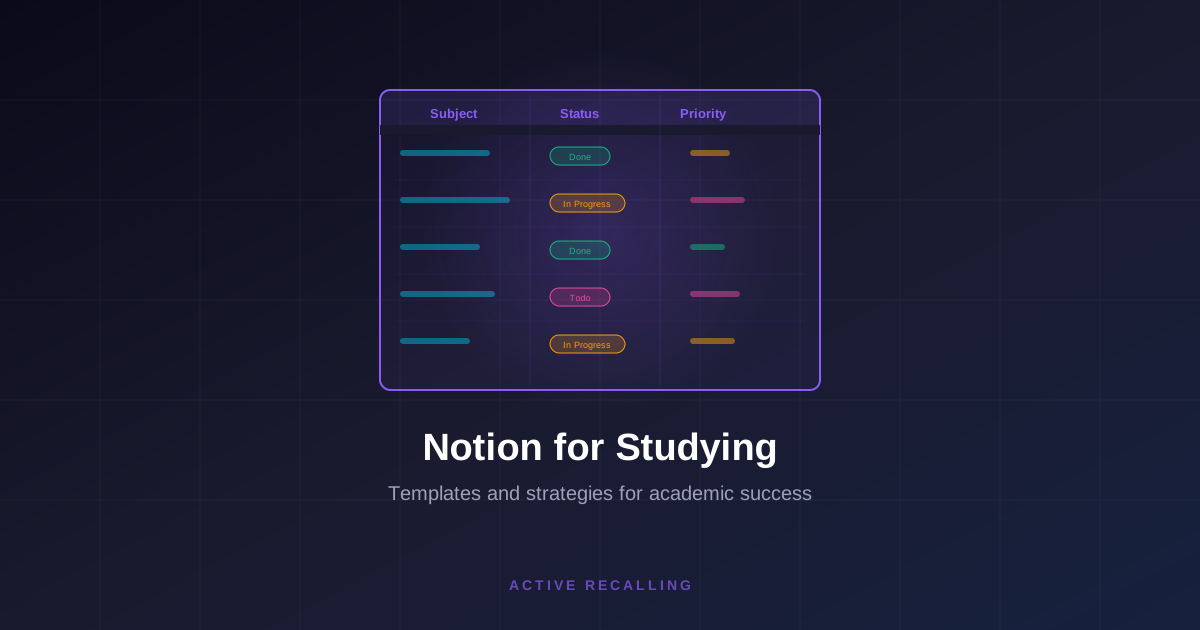
Create a single master task database that holds all your assignments, study tasks, and deadlines across every course. Give each entry properties for course name, due date, priority level, estimated time, and completion status. From this single database, you can create filtered views for each course, a view of everything due this week, or a view of only high-priority incomplete tasks.
The power of this approach is that you enter each task once but can view it in many different contexts. Your course page shows only tasks for that course. Your dashboard shows only tasks due today. Your weekly planner shows everything for the week. The data stays synchronized automatically.
Building a Study Tracker
A study tracker is one of the most valuable tools you can build in Notion. It serves two purposes: it helps you plan your study time intentionally, and it provides accountability by showing exactly how much time you have spent on each subject.
Tracking Study Sessions
Create a study sessions database with properties for date, course, duration, topic studied, and a rating of how productive the session felt. After each study session, add a quick entry. This takes less than a minute and builds a valuable record over time.
Use Notion's rollup and formula features to calculate weekly study totals by course. This immediately reveals imbalances. If you are spending four hours per week on your favorite subject and one hour on the course you are struggling with, the data makes the problem visible.
Spaced Repetition Scheduling
While Notion is not a dedicated spaced repetition app, you can build a basic review schedule using its database features. Create a database of topics or concepts with a "Next Review" date property. After each review, update the date based on how well you remembered the material — push it further out for easy topics and closer in for difficult ones.
This approach works for tracking what needs review at a high level, though it lacks the card-by-card algorithmic precision of dedicated tools like Active Recalling. A practical strategy is to use Notion for high-level planning (which chapters to review this week) and a dedicated spaced repetition app for granular flashcard scheduling (which individual cards to review today).
Progress Visualization
Notion's gallery and calendar views can turn your study tracker into a visual motivation tool. A calendar view of your study sessions shows your consistency at a glance, similar to a GitHub contribution graph. Gaps in the calendar make skipped days visible, which can be a powerful motivator for maintaining your study habit.
Creating a Flashcard Database
Notion can function as a basic flashcard system, though with significant limitations compared to dedicated apps.
Database Structure
Create a database with two text properties: Question and Answer. Add properties for course, topic, difficulty level, and last review date. You can toggle between viewing the question only and revealing the answer by using Notion's toggle blocks within each entry, or by creating a gallery view that shows only the question property.
Limitations and Workarounds
Notion flashcards lack the spaced repetition algorithm that makes dedicated flashcard apps so effective. You are responsible for managing your own review schedule, which is fine for small sets but becomes impractical as your collection grows beyond a few hundred cards.
A pragmatic approach is to use Notion as a flashcard creation workspace where you draft and organize your cards, then import the content into a dedicated spaced repetition tool for actual review. Some students create their flashcard content in Notion during lectures and then transfer the most important cards to Active Recalling or Anki for scheduled review.
Note-Taking Strategies in Notion
The Cornell Method in Notion
The Cornell Note-Taking System adapts beautifully to Notion. Create a lecture note template with three sections: a wide column for detailed notes, a narrow column for cue questions and keywords, and a section at the bottom for a summary written after the lecture.
In Notion, you can implement this using a two-column layout with callout blocks for the cue column. The summary section at the bottom forces you to review and distill the lecture content immediately, which is far more effective than letting notes sit unreviewed.
Linked Databases for Cross-Referencing
One of Notion's most powerful features for academic use is the ability to link between databases. If a concept appears in multiple courses — for example, statistics concepts that appear in both a research methods course and an economics course — you can link to the same page from both course databases. This creates a web of connected knowledge rather than isolated silos.
As your Notion workspace grows over a semester or an entire degree, these cross-references become increasingly valuable. They mirror the way knowledge actually works: interconnected rather than compartmentalized.
Progressive Summarization
Implement progressive summarization within your Notion notes by using formatting layers. During your first pass, bold the most important sentences. During your second pass, highlight the most important of the bolded sentences. During your third pass, create a brief executive summary at the top of the page.
Each layer takes only a few minutes and progressively distills the content to its essence. When you return to the notes weeks later for exam review, you can read just the highlighted portions and get the key ideas in minutes rather than re-reading the entire document.
Template Ideas for Students
Weekly Review Template
Create a template for a weekly review that prompts you to answer five questions: What did I accomplish this week? What did I struggle with? What is due next week? What do I need to study for upcoming exams? What adjustments do I need to make to my study schedule? Completing this template every Sunday evening takes ten minutes and dramatically improves your planning for the week ahead.
Reading Notes Template
For courses with heavy reading loads, create a template that captures: title, author, key arguments, important quotes with page numbers, questions the reading raised, and connections to other course material. This structured approach ensures you extract the maximum value from each reading assignment and have organized notes ready for essay writing and exam review.
Exam Prep Template
When exam season approaches, create a prep template for each exam that includes: exam date and time, topics covered, your confidence level for each topic (rated one to five), a study plan with specific tasks for each day leading up to the exam, and a list of practice resources. This template transforms vague exam anxiety into a concrete, actionable plan.
Common Mistakes to Avoid
Over-Engineering Your System
The most common Notion mistake among students is spending more time building and tweaking the system than using it. Your Notion workspace does not need to be beautiful to be effective. Start simple with a dashboard, course pages, and a task database. Add complexity only when you encounter a specific problem that requires it.
Not Using Templates
If you find yourself recreating the same structure repeatedly, you are wasting time. Set up templates for every recurring format — lecture notes, reading notes, weekly reviews — and use them consistently. The few minutes spent creating a template save hours over a semester.
Treating Notion as Your Only Tool
Notion is excellent for organization, planning, and note storage, but it is not optimized for every academic task. It lacks the algorithmic scheduling of dedicated spaced repetition apps, the focused writing environment of a distraction-free text editor, and the collaborative features of tools like Google Docs. Use Notion as the central hub that connects your tools, not as a replacement for all of them.
Ignoring Mobile Access
Many students build elaborate Notion setups on their laptops but never check them on their phones. The Notion mobile app is capable enough for reviewing tasks, checking your schedule, and adding quick notes. Make sure your most important views work well on a small screen so you can access your system wherever you are.
Integrating Notion with Your Study Workflow
The most effective study systems use Notion as a planning and organization layer while relying on specialized tools for specific learning activities. Here is a workflow that many top students follow.
Use Notion to plan what to study each day and track your progress. Use a dedicated flashcard app with spaced repetition to review key concepts efficiently. Use Notion to store and organize notes with cross-references and progressive summarization. Use a calendar app for time-specific commitments like classes and office hours, with deadlines duplicated in your Notion task database.
This separation of concerns plays to each tool's strengths while keeping Notion as the central point of reference for your academic life.
Conclusion
Notion is a remarkably powerful tool for students, but its value comes from how you use it, not from how elaborate your setup is. Focus on the fundamentals: a clean dashboard, organized course pages, a master task database, and a study tracker. Add templates for your recurring workflows and resist the urge to over-complicate.
Remember that Notion is a tool for organization and planning, not a replacement for the actual work of learning. The best Notion setup in the world will not help if you are not putting in focused study time. Build a system that takes minutes to maintain, not hours, and spend the rest of your time on what actually matters: engaging with the material, testing yourself, and building genuine understanding.